
Terminal Interface
Keyboard-driven port-forward management with low resource use, SSH compatibility, settings and HTTP log viewer.
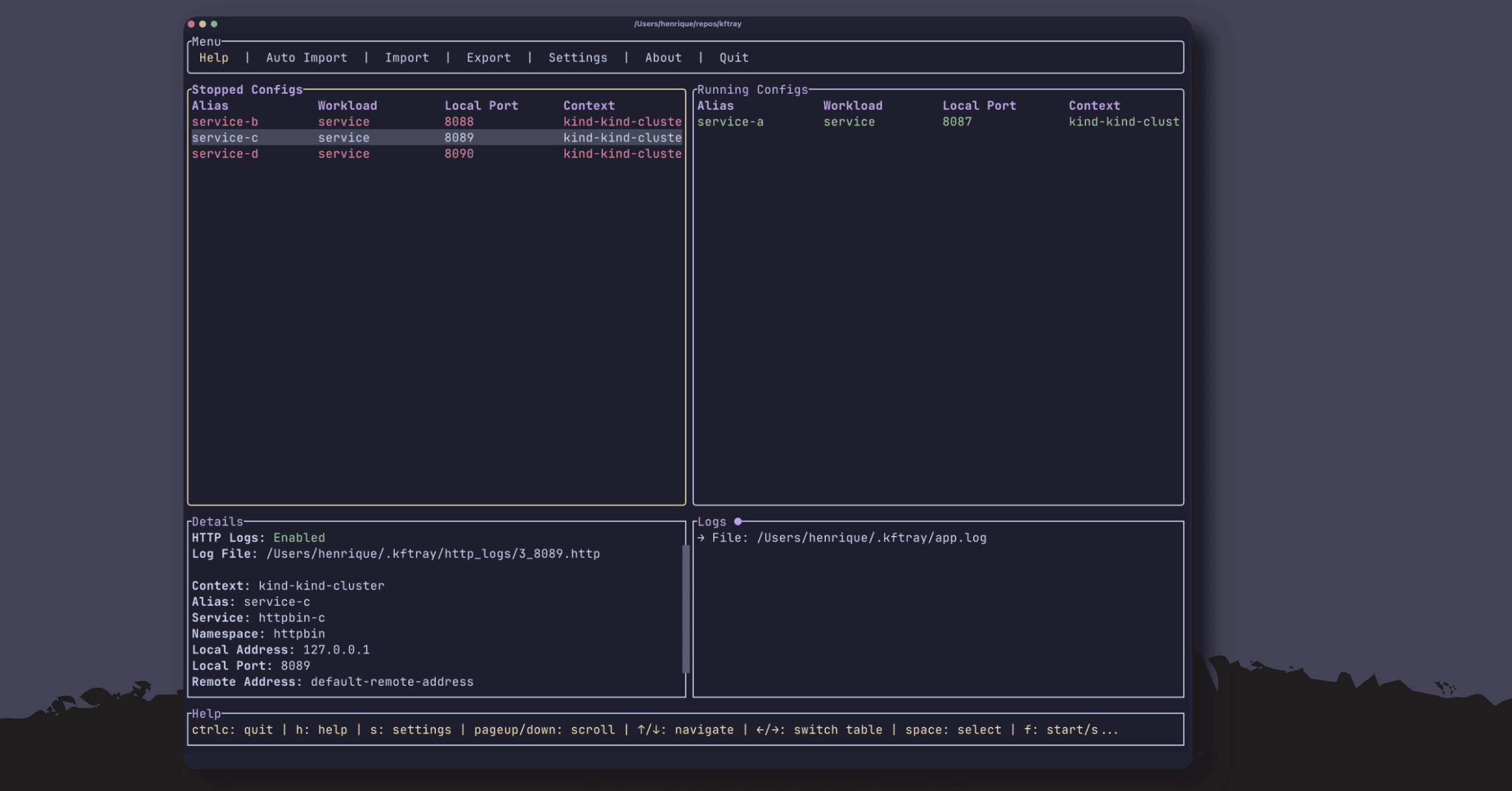
The kftui terminal interface manages Kubernetes port forwards from the keyboard. It uses few resources and works over SSH, so it covers what the desktop app does without a desktop environment. kftui and kftray share the same database and configs. Set up a forward in one and you see it in the other. For command-line flags, non-interactive mode and scripting, see the CLI page.
Quick start
Create config.json:
[
  {
    "alias": "my-api",
    "context": "minikube",
    "namespace": "default",
    "service": "api-service",
    "local_port": 8080,
    "remote_port": 80,
    "protocol": "tcp",
    "workload_type": "service"
  }
]
Launch kftui with it:
kftui --configs-path config.jsonThe "Stopped" table on the left shows your configuration. Press f to start the port forward. The configuration moves to the "Running" table on the right, and your service is available at localhost:8080. Press f again to stop it.
To avoid passing the file every time, save the configs to kftui's database:
kftui --configs-path config.json --saveThen run kftui with no arguments to open your stored configurations. Without --save, kftui keeps the configs in memory for that run only.
Service and pod forwards share one 60-second startup deadline across readiness, named-port resolution and the first connection. See forwarding behavior.
Interface layout
kftui has a top menu bar and four panels:
- Top menu bar: Help, Auto Add, Import, Export, Settings, About and Exit
- Stopped Configs (left): configurations ready to start
- Running Configs (right): active port forwards with live status
- Details (bottom): full configuration details for the selected entry (service, namespace, ports, tags, HTTP logs path)
- Logs: application log output
The status column uses these indicators:
| Indicator | Meaning |
|---|---|
| Green | Active connection |
| Red | Stopped |
| Yellow | Connecting or error |
Menu
The top menu has seven items. Use ← → to move and Enter to select:
- Help: usage information and keyboard shortcuts
- Auto Add: discover services from your Kubernetes cluster (details)
- Import: load configuration files through a file browser
- Export: save the current configurations to a JSON file
- Settings: configure application behavior
- About: version and project information
- Exit: stop all active port forwards and close kftui
Keyboard reference
| Key | Function |
|---|---|
f | Start or stop the marked port forwards |
Space | Mark or unmark a configuration |
a | Mark all configurations (only the ones shown while a / search is active) |
d | Delete the marked configurations |
i | Import configurations |
e | Export configurations |
s | Open settings |
h | Show help |
q | Show About |
l | Toggle HTTP logging |
L | Configure HTTP logging |
V | View HTTP logs |
o | Open HTTP logs in an external editor |
v | Group by and filter configs (saved and shared with the desktop app) |
t | Edit tags of the selected config (key=value, key, ...) |
/ | Focus the search box |
Tab | Switch between interface components |
← → | Move between menu items, or between the Stopped and Running tables |
↑ ↓ | Move within a section |
PageUp PageDown | Scroll through content |
Home End | Jump to the first or last item |
Ctrl+C | Exit |
Tab cycles through the menu, the search box, the Stopped table, the Details panel and back to the menu. From the Running table or the Logs panel it goes to the menu.
q does not quit
q opens the About screen. Quit with Ctrl+C, or select Exit in the top menu. Both stop the active port forwards first.
The sections below list the keys for each dialog.
Configuration management
Press i to open the import dialog. The file browser keys are:
↑ ↓ (or k j)   Navigate files and directories
→ (or l)       Enter a directory
← (or h, Backspace)   Go up one directory
Home / End     First / last entry
PageUp / PageDown   Scroll
Enter          Enter a directory, or import the selected .json file
Esc            Cancel
Import takes a JSON file with one config or an array of configs, in the configuration format. kftui validates all configs before it changes anything, and validation errors appear right away. The dialog merges the file into your existing configs. It never clears them, so use --flush on the command line to replace them.
Port forward management
Move to the configuration with ↑ ↓.
Press Space to mark it.
Press f to toggle the forward.
The status changes from ○ Stopped to ⚠ Connecting to ● Running. To start several forwards at once, mark them with Space (or press a to mark all shown) and press f. To stop forwards, use the same pattern on the Running table.
Bulk actions run independent configurations concurrently in bounded batches. A configuration stays busy until its operation finishes, so pressing f again doesn't submit a duplicate. Quitting cancels queued operations, waits for active ones and stops the forwards before kftui exits.
Failed forwards show the ⚠ Error status. Select the configuration to read the error in the Details panel or the Logs panel.
Changing the view or saving tags reorders the tables, so kftui clears the rows you marked with Space. That stops bulk actions from hitting configurations that moved into those rows.
Search, group and filter
Press / to type a search. Printable characters, including shortcut letters, go into the search box. Backspace deletes, Esc clears the search and returns to the Stopped table, and Enter or ↓ moves to the first matching table.
Press v to group and filter, and t to edit tags. See tags, filters and group by.
Auto Add
Auto Add creates configurations from annotated Kubernetes services. It has no letter shortcut:
Press Tab until the top menu has focus, or move up from the table.
Move to Auto Add with ← → and press Enter.
Pick a Kubernetes context with ↑ ↓.
Optional: press a to turn alias-as-domain on or off, and d to turn auto loopback on or off.
Press Enter to discover and import. Esc closes the dialog.
kftui creates configs for all annotated services in that context. See Auto Import for the annotation format.
Application settings
Press s or select Settings in the menu. Use ↑ ↓ to pick a row and Enter to toggle it or to edit a number. For numbers, type digits and press Enter to save. Esc closes the dialog or cancels the edit.
| Row | Default | Description |
|---|---|---|
| Timeout | Off | Stops forwards after a number of minutes. Off disables it |
| Minutes | 0 | Number of minutes for the timeout. You can edit it only when Timeout is on. Turning Timeout on starts at 5 minutes |
| Network Monitor | On | Watches network connectivity and reconnects dropped forwards |
| SSL/TLS | Off | Turns on automatic TLS. It also turns on certificate regeneration and CA installation, and generates the certificates |
| SSL Validity | 365 days | Certificate validity, 1 to 3650 days. You can edit it only when SSL/TLS is on |
| Crash Reports | Off | See below |
| Performance Data | Off | See below |
Settings persist between sessions.
Crash reports
Crash reports send a report to the kftray maintainer when kftui crashes or a port forward fails to start or stop. kftui asks once on first start, and closing the prompt counts as no. In the prompt, ← → or Tab switch between Allow and Decline, Enter applies and Esc declines.
A crash report includes the error type and code location, app version, build target, operating system, app uptime and thread that failed.
It has a random per-run ID that isn't stored, plus the names and results of port-forward operations before the crash.
A failed port forward is reported by its operation name and a fixed reason, such as timeout, target_not_found, kubeconfig or port_in_use.
The error message itself is never sent. Reports never include cluster names, namespaces, service names, aliases, kubeconfig files or log lines.
Setting the DO_NOT_TRACK environment variable turns reporting off. The prompt and the setting live in the file database, so a run that loads its configs into memory never sends reports.
Backend operations classified as cancelled leave an informational breadcrumb instead of a separate error report. With performance data on, their traces use cancelled rather than internal_error. A cancelled start whose rollback couldn't finish is still reported, as cleanup_incomplete, because it can leave a relay pod, loopback alias or hosts entry behind.
Performance data
Performance data sends port-forward startup and shutdown timings, step durations and failure status to the kftray maintainer.
kftui asks once on first start, after the crash reports prompt. Closing the prompt counts as no.
Each record includes the operation name, step names and durations, result and fixed failure reason described above.
It also includes the app version, build target and per-run ID. It never includes cluster names, namespaces, service names, aliases or kubeconfig files.
DO_NOT_TRACK and the in-memory database turn it off the same way as crash reports.
Turning performance data off stops new timing records, including operations still running. A capture already in progress finishes before the setting change returns. Records already queued for delivery can still be sent. Crash reports keep their separate setting.
The desktop app has the same reports and a Report a problem form.
HTTP logs
Turn on logging with l for the selected configuration, or with "http_logs_enabled": true in the config file. Press L to configure it, V to view the logs and o to open them in an external editor. The viewer keys, the replay feature and the log format are on the HTTP Logging page.
In the HTTP logs dialog (L), arrow keys move between logging, size, retention and cleanup settings. Press Enter to toggle a value or edit a number.
Use digits and Backspace to edit numbers, and Esc to close the dialog.
The size setting accepts 1 to 1000 MiB and retention accepts 1 to 365 days. See logging limitations for how these settings are used.
Other dialogs
- Help:
h,EnterorEsccloses it. - About:
qorEsccloses it.Enteroffers an available update in release builds. - Error popup:
EnterorEscdismisses it.↑↓scroll one line,PageUpPageDownten andHomeEndjump to the ends. - Update confirmation:
←→choose Update or Cancel,Enteracts andEsccancels.
Configuration file structure
kftui reads the same JSON as the desktop app. The fields most configs use:
{
  "alias": "my-service",
  "namespace": "production",
  "service": "api-service",
  "local_port": 8080,
  "remote_port": 80,
  "protocol": "tcp",
  "workload_type": "service",
  "context": "prod-cluster",
  "kubeconfig": "/path/to/config",
  "http_logs_enabled": true,
  "tags": { "team": "payments" }
}
alias is the display name and tags is optional. Import requires namespace, workload_type and the target field for that workload type. The Configuration page lists every field, including proxy and expose settings. For flags that load configs, see CLI mode and scripting.