
Desktop App
Visual port-forward management with tray or window mode, HTTP logging, GitHub sync, settings, crash reports and problem reports.
The kftray desktop interface manages Kubernetes port forwards visually and can run from the system tray.
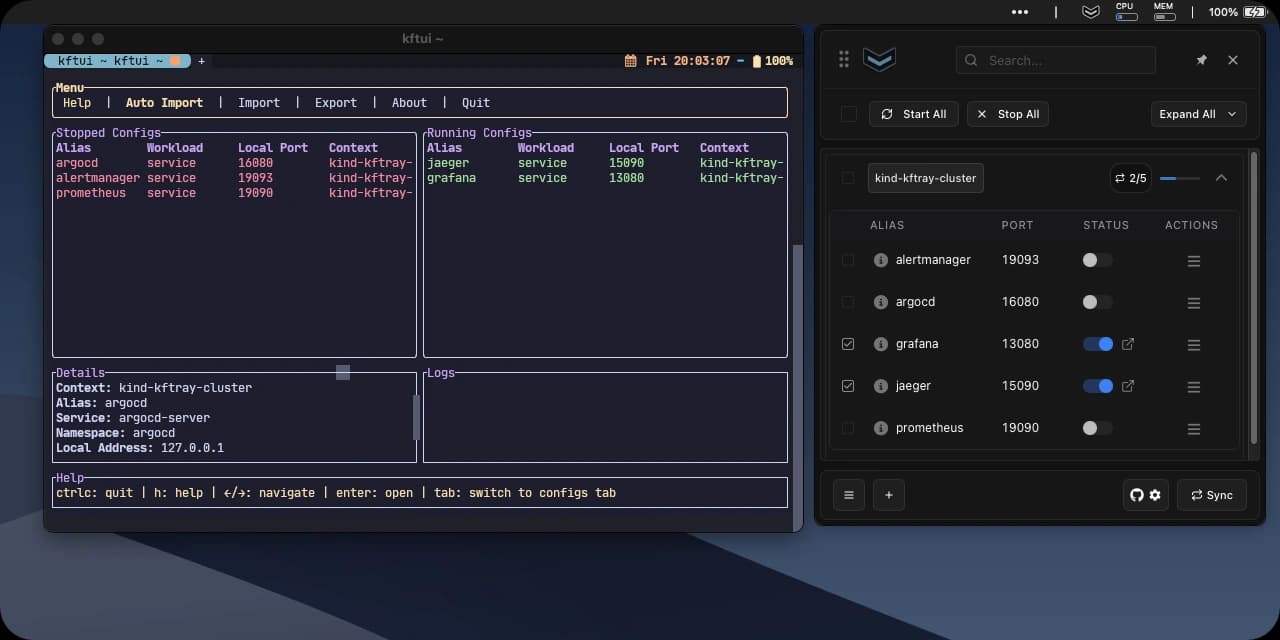
Configure your first port forward
Launch kftray. The main window opens on its own. Later, open it from the tray icon.
Click the + button in the footer to add a configuration.
Fill in the form:
- A unique alias. You can also use the alias as a domain for the forward (see local addresses).
- The workload type: a service (the common case), a pod or a proxy (a port forward to an endpoint through the Kubernetes cluster). See workload types.
- The Kubernetes context.
- The namespace of your service.
- The service name.
- TCP or UDP.
- The local and remote port numbers. For a pod label target, the remote port list shows each port name and number once, even when several replicas match the label.
- Optional: a custom local IP address.
- Optional: tags (see tags, filters and group by).
Use the row switch to start or stop the forward. Start All and Stop All act on many configurations.
If you leave Local Port blank, kftray picks a free port when you save and stores it. An empty alias becomes <workload type>-<protocol>-<local port>.
Administrator access
Hosts-file changes and loopback setup can need administrator access. When a start needs it and kftray-helper isn't running, kftray asks first.
You can install the helper, continue without it or cancel. See local addresses and domains for each choice and for custom-address requirements.
App mode
kftray runs in one of two modes. To change it, open the footer menu and select Settings > App Mode.
- Tray (the default): the window opens when kftray starts, from the tray icon or from the global shortcut. It hides when it loses focus, unless you pin it. If no system tray is available (for example, GNOME without the AppIndicator extension), kftray runs in Window mode until a tray appears.
- Window: kftray runs as a regular app without a tray icon. The window opens in the screen center with a taskbar or Dock entry. It stays open when it loses focus.
In both modes, the header button next to the pin hides the window (Tray) or minimizes it (Window), and the × button quits kftray. Launching kftray again while it runs brings the existing window to the front. Drag the window edges to resize it, and kftray keeps the size for the next start. Settings > Window > Reset Position moves the window back to its default position.
System tray
The tray icon gives quick access without opening the full interface. The tray menu has these items:
Toggle Appshows or hides the window.Pin Windowkeeps the window open when it loses focus.Set Window Positionmoves the window to the center or a corner of the screen, or resets it. On macOS and Windows it also offersSystem Tray Center.View Logsopens the log viewer.Quitquits kftray.
Linux AppIndicator requirement
GNOME needs the AppIndicator extension installed and enabled. KDE, XFCE and other desktop environments usually include AppIndicator support by default. Without a tray, kftray uses Window mode.
Main window
The main window lists all configurations, each with a status switch.
Configuration management
Click the + button in the footer to create a new configuration. The dialog validates inputs and won't save an invalid configuration.
{
  "alias": "gateway",
  "context": "dev",
  "namespace": "development",
  "workload_type": "service",
  "service": "api-gateway",
  "protocol": "tcp",
  "local_port": 8080,
  "remote_port": 80
}
Optional fields include a custom kubeconfig path, a local address, a domain alias and tags. Configuration lists every field.
The row actions menu also has Enable HTTP Logs (or Disable HTTP Logs), Open HTTP Logs File and HTTP Logs Settings. They appear for TCP forwards only.
Port forward management
To start one forward, toggle the switch next to its configuration. The status changes from red (stopped) to yellow (connecting) to green (active).
To start many forwards, click Start All or Start Selected. To stop them, use the switches, Stop All or Stop Selected. Start All starts the shown configurations, and Stop All stops every running configuration, shown or not, including expose tunnels. During a bulk action, the cancel button discards queued operations, and operations already in progress finish normally. See bulk actions.
Only the app that started a forward can stop it.
Status indicators:
| Color | Meaning |
|---|---|
| Green | Active connection |
| Red | Stopped |
| Yellow | Connecting or reconnecting |
| Error icon | Failed to start or lost connection |
When a connection fails, a tooltip shows the error details. If the failure came from refused administrator access, the helper dialog opens with the error, and Retry without repeats the start. For a failed app request, the notification has a Report option (see Report a problem).
HTTP logging
HTTP logging records requests and responses for debugging TCP forwards. See HTTP Logging for setup, file locations and log formats.
To turn it on, open the row actions menu and select Enable HTTP Logs. Once it is on, Open HTTP Logs File opens the log in your external editor or the system app. Logs live in the http_logs folder of your configuration directory, one file per configuration.
Disk usage
HTTP logging can produce large files for high-traffic services. Watch disk usage and delete logs you no longer need.
Log viewer
Open the application log viewer from the footer menu (Log Viewer), the tray menu (View Logs) or Settings > Log Files > View Logs. It opens in its own window and shows the application logs.
Desktop logs go to the configuration directory as kftray_<date>_<time>.log files. Settings > Log Retention sets how many files and days to keep (10 files and 7 days by default), and Purge Now cleans up old logs.
Server resources
Select Server Resources in the footer menu to see the Kubernetes resources kftray deployed, such as relay pods, services and ingress objects for expose workloads. You can delete one resource, clean up orphaned resources with the Clean <N> Orphaned button, or use Delete all resources. Use this view to check resources and remove leftovers, for example after a cancelled start.
Footer menu
The footer has the + button for a new config, bulk delete, Manage Global Shortcuts, Configure Git Sync, the Sync button and the main menu. The main menu has these items:
| Item | What it does |
|---|---|
Export Local File | Saves all configurations as a JSON file |
Import Local File | Loads configurations from a JSON file. Disabled while Git credentials are configured |
Auto Import | Discovers annotated services (Auto Import) |
kftray-helper | Installs or removes the privileged helper |
Server Resources | Lists and cleans up cluster resources |
Log Viewer | Opens the application logs |
Report a problem | Sends a problem report (details) |
Settings | Opens the settings |
kftray-helper
The kftray-helper is a small privileged service. It adds and removes loopback addresses and edits hosts file entries, so kftray doesn't ask for administrator access on every start. Select kftray-helper in the footer menu to install it, or to uninstall it after a confirmation. One administrator prompt installs it.
- On Linux, it runs as a systemd user service with a polkit policy. Without a user bus, it falls back to a standalone process. Installation uses
pkexec, thensudoifpkexeccan't run. - On macOS, it runs as a launchd daemon installed through an administrator prompt.
- On Windows, it runs as an automatic-start Windows service.
GitHub sync
GitHub sync shares configs across a team. Select the GitHub icon in the footer and enter the repository URL and JSON file paths.
Add a token for private repositories and set the polling interval. The Sync button fetches updates before the next scheduled check.
The repository version overwrites matching local configs, so back up your configs first if you need to keep local changes.
See GitHub Sync for authentication and sync behavior.
Auto import
Auto import discovers services in Kubernetes clusters with the kftray.app/enabled annotation. Select Auto Import in the footer menu, pick the kubeconfig and context, and click Import. See Auto Import for the annotation details.
Global shortcuts
Select the keyboard icon (Manage Global Shortcuts) in the footer to edit system-wide shortcuts. Edit a shortcut, press the new key combination and click Save Changes. These actions are available:
- Toggle Window. Check its current binding in the shortcuts settings.
- Start All Port Forward and Stop All Port Forward.
- Start Port Forward, Stop Port Forward and Toggle Port Forward, each for one or more configs that you choose.
Settings
Open Settings from the footer menu. It has these sections:
GitHub sync settings live in their own dialog, and the token is stored in the system keyring.
Crash reports
On first start kftray asks whether it may send crash reports and performance data. Crash reports start on and performance data starts off. Nothing is sent before you answer. Save and closing the dialog keep what the switches show, and No thanks turns both off. kftray stores your choices, and you can change them later under Settings > Crash Reports and Settings > Performance Data.
A report includes the error type and code location, app version and build target, such as x86_64-unknown-linux-gnu.
It also includes the operating system name and version, CPU architecture, device model, app uptime and name of the thread that failed.
The list of loaded libraries carries file names only, never the folder the app was installed to.
A random run ID links reports from the same session. It changes on each start and isn't stored, so it doesn't identify you or your computer.
Panic messages are sent only when they are fixed strings in the code. A panic that carries a cluster address or a resource name is reduced to a file and line. A report also lists what happened before it (for example portforward.start ok, window.shown, update.check). Those entries are only fixed names and whether an operation succeeded, never which configuration it was.
Failed port forwards, git imports and MCP server starts are also reported individually, and so are failed attempts to bring a relay forward back after its pod died or to restart forwards after a network change.
Each report includes the operation name and a fixed reason, such as timeout, target_not_found, kubeconfig or port_in_use. The error message itself is never sent.
The window reports its own errors under the same switch and run ID, including an error while drawing the interface, which shows a reload screen instead of a blank window. It sends the error type, code locations and function names.
It leaves out error messages, page addresses and browser identification.
A failed request from the window to the app is reported as InvokeError with its fixed request name, such as start_port_forward_tcp_cmd.
The request's arguments and error message are never sent.
Reports never include cluster names, namespaces, service names, aliases, kubeconfig files, log lines or your host name.
Backend operations classified as cancelled leave an informational breadcrumb instead of a separate error report. With performance data on, their traces use cancelled rather than internal_error. A cancelled start whose rollback couldn't finish is still reported, as cleanup_incomplete, because it can leave a relay pod, loopback alias or hosts entry behind.
Reports go to a GlitchTip server run by the kftray maintainer at glitchtip.cavarsa.app. The proxy in front of it drops the client IP before the report is stored. Setting the DO_NOT_TRACK environment variable turns reporting off whatever the setting says, and development builds never send reports.
Report a problem
Open the footer menu and choose Report a problem to describe a problem, with or without a crash. Enter a description of up to 4000 characters. The email field is optional and lets the maintainer contact you.
To describe a specific failure, choose Report on its notification. The option appears for individual failed app requests captured while crash reports are on.
Sending applies to that report only and leaves your diagnostics settings unchanged. You can send a report with crash reports and performance data turned off. Development builds and sessions started with DO_NOT_TRACK can't send reports.
Reports go to the same server as crash reports. They carry your description, the optional email, the app version, the build target, the submission time and a random report id. A report about a specific failure also references that error. kftray never attaches logs, configuration files or screenshots. Review your text before you send it, and leave out passwords, tokens, kubeconfig contents and cluster details.
Each report is stored as its own entry, so a timing issue on the server can't lose it. If submission fails, the form keeps your text so you can try again or cancel.
Performance data
Performance data is the second switch in the same first-start dialog. It starts off and is a separate choice from crash reports. You can change it under Settings > Performance Data.
When it's on, kftray records how long it takes to:
- start a port forward (including the ones started automatically on launch), stop one or stop all of them
- recover a relay forward after its pod died, or restart forwards after a network change
- start up (opening the database, running migrations, reading settings)
- import configurations from a git repository
- start the MCP server
It also records failures and step timings, such as address allocation, cluster connection, local port binding and relay deletion.
The window records request durations under fixed names, such as get_configs. Request arguments and results are never sent.
Each record includes the operation or request name, step names and durations, result and fixed failure reason. It also includes the app version, build target and run ID described above. It never includes cluster names, namespaces, service names, aliases, kubeconfig files or your host name.
The data goes to the same GlitchTip server as crash reports. DO_NOT_TRACK and development builds turn it off too.
Turning performance data off stops new timing records for backend operations, including operations still running. A capture already in progress finishes before the setting change returns. Records already queued for delivery can still be sent. Crash reports keep their separate setting.
Import and export
Use Export Local File and Import Local File in the footer menu to back up or share your configurations as JSON. The file format and import rules are on the Configuration page. To share configs with a team automatically, use GitHub sync.